Messaging
Talk to your AI directly in the browser, configure which messaging platforms Corvin listens on, tune the voice profile, and manage the people in your installation.
Chat
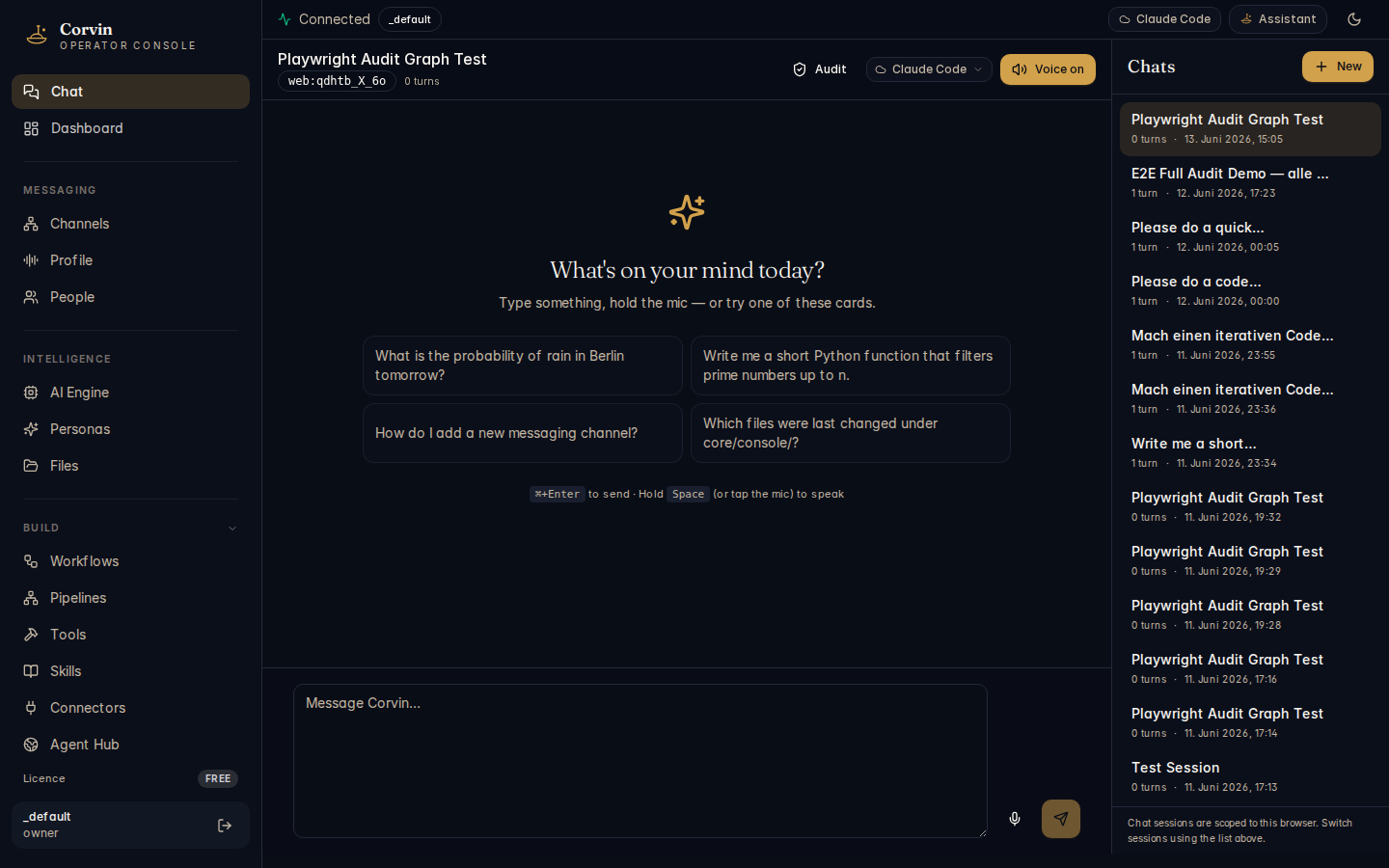
The Chat page is your direct interface to CorvinOS from the browser. Every conversation is a session — past sessions appear in the left panel and can be revisited at any time. New sessions start clean with no shared memory from previous ones.
Session list
The left sidebar shows your past sessions, most recent at the top. Each entry is titled automatically from the first exchange. Examples you might see include sessions like Playwright Audit Graph Test, E2E Full Audit Demo, or various code and engineering tasks. Clicking a session restores the full conversation. Sessions are scoped to the browser tab — opening a new tab gives you a fresh context.
Suggestion cards
When a new session is started, the center area shows a "What's on your mind today?" prompt with four suggestion cards to help you get started quickly:
- What is the probability of rain in Berlin tomorrow?
- Write me a short Python function that filters prime numbers up to n.
- How do I add a new messaging channel?
- Which files were last changed under core/console/?
Click any card to pre-fill the input and send it immediately.
Input bar
The input bar at the bottom of the screen accepts text and voice. Key controls:
Send — ⌘+Enter
Press ⌘+Enter (or Ctrl+Enter on Windows/Linux) to send a message. Plain Enter adds a newline.
Voice Input
Hold Space or tap the microphone button to speak. Release to transcribe and send. Requires a configured STT provider (OpenAI Whisper by default).
Voice On/Off
Toggle the voice output switch to enable or disable text-to-speech for AI responses. The setting persists for the current session.
Audit
Click the Audit button to open the session audit trail — a hash-chained log of every event produced during the current session.
Engine selector
Each chat can use a different AI engine. The engine selector (shown as e.g. Claude Code) appears in the input bar area. Click it to switch engines for the current session. Available engines depend on what is installed and detected — see the AI Engine page for details.
New session
Click the New button to start a fresh session. This resets the conversation context, clears any session-scoped skills or tools generated during the previous session, and emits a session.reset event to the audit chain before any cleanup occurs.
The browser chat and the messaging-platform bridges (Discord, Telegram, etc.) share the same AI backend but maintain separate sessions. A conversation started in the browser does not appear in Discord and vice versa.
Channels
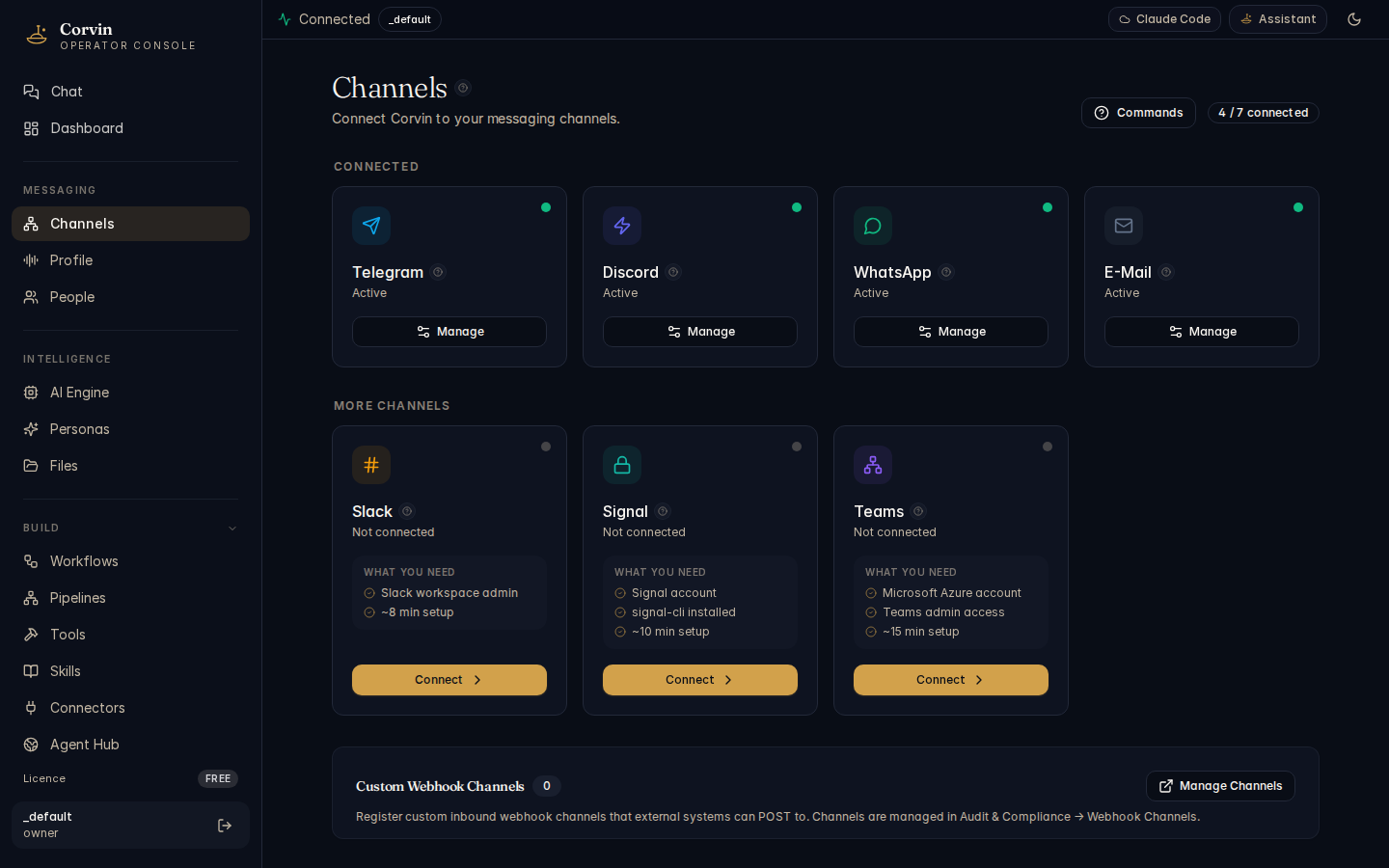
The Channels page shows all messaging bridges that CorvinOS can connect to. Each bridge corresponds to a platform that Corvin listens on and responds through — Discord, Telegram, Slack, WhatsApp, Email, and more.
Configuring a bridge
Each bridge requires a platform token to connect. Tokens are stored in the secret vault (~/.config/corvin-voice/secrets.json) and are injected into the bridge process at start time via environment variables — they are never written to the audit log or exposed to the AI context.
- Obtain a bot token from the relevant platform (e.g. create a Discord application and generate a bot token in the Developer Portal).
- Add the token to the secret vault via System → API Keys in the console, or by editing
~/.config/corvin-voice/secrets.jsondirectly (mode 0600). - Restart the relevant bridge:
bridge.sh restart. The bridge process picks up the token at boot. - The channel indicator on the dashboard and on this page turns green once the bridge has successfully connected.
Bridge settings
Each bridge has a settings.json file under operator/bridges/<channel>/settings.json. This file controls the whitelist, rate limits, chat profiles, and voice summary mode for that channel. Settings are read by the bridge on every incoming message — you do not need to restart the bridge to apply most changes.
Settings changes in operator/bridges/<channel>/settings.json hot-reload immediately. Only token changes, HTTP port changes, or structural daemon code changes require bridge.sh restart.
Per-chat profiles
The chat_profiles key in settings.json lets you assign different AI personas, engine preferences, or permission sets to specific chats or channels within a bridge. Profiles are matched by chat ID. If no profile matches, the bridge uses the default open profile.
Voice Profile
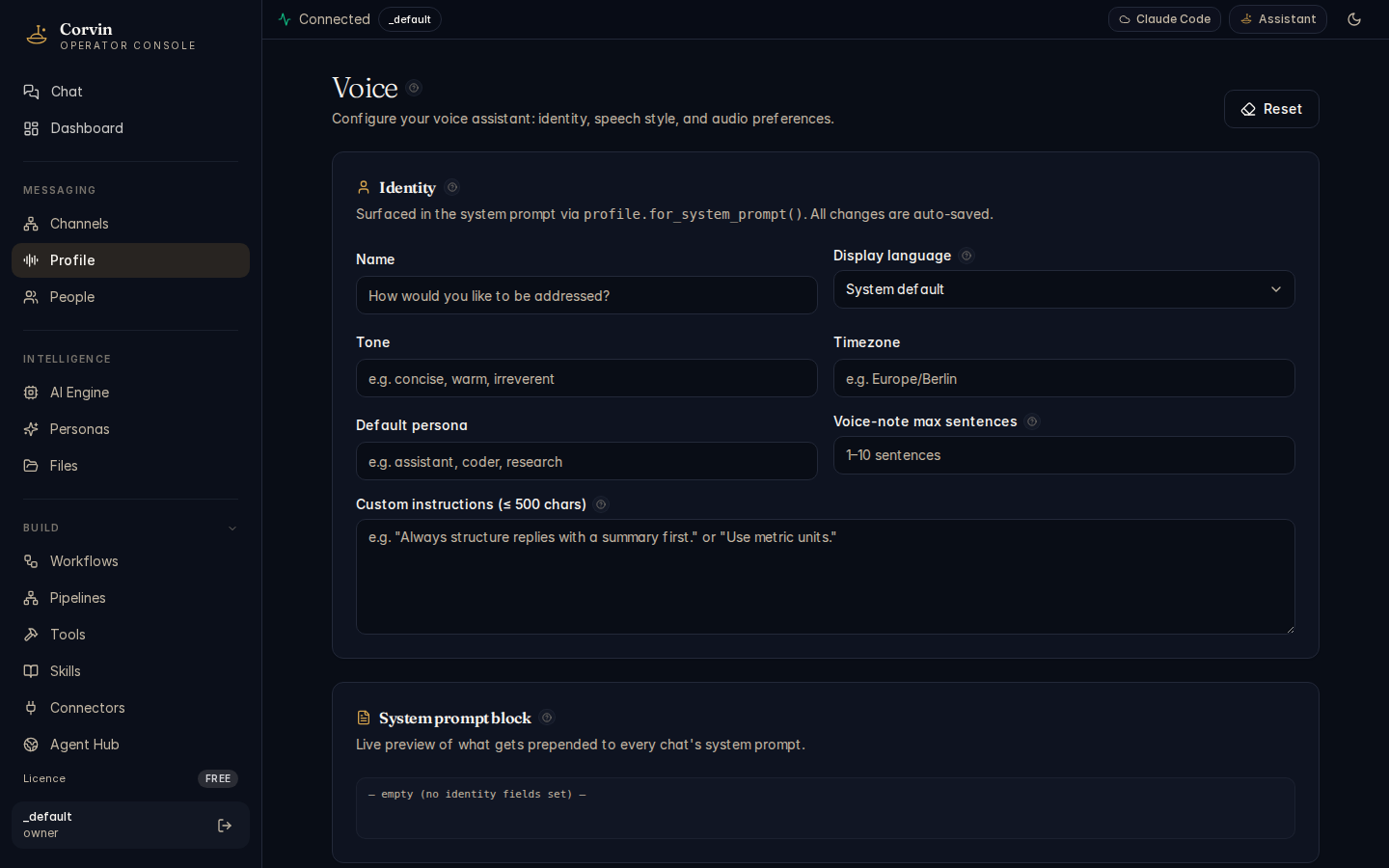
The Voice Profile page controls how CorvinOS speaks. It combines TTS provider selection with an audience configuration that shapes the tone, detail level, and register of spoken responses.
TTS provider
CorvinOS supports multiple text-to-speech providers. The provider is selected here and controls which API is used to synthesize spoken responses. The default provider uses the OpenAI TTS API; the key is read from the secret vault at ~/.config/corvin-voice/.env (mode 0600).
Voice audience profile
Voice responses are synthesized from the same text replies the AI produces, but the audience profile shapes how that text is written before synthesis. Seven voice_audience_* fields in ~/.config/corvin-voice/profile.json let you tune responses for the listener:
- Expertise level — beginner to expert; controls how much the AI explains versus assumes.
- Preferred register — formal, neutral, or casual tone.
- Response length — brief, balanced, or detailed.
- Language — the language the AI responds in for voice output.
- Domain focus — technical, general, creative, etc.
- Pacing hints — pause preferences and sentence length for natural-sounding TTS.
- Accessibility notes — any listener-specific requirements to keep in mind.
Use the console commands /voice-user-show, /voice-user-set, /voice-user-clear, /voice-user-preview, or /voice-user-help to manage the profile from any connected channel.
The voice profile is per-installation, not per-user. All users on the same CorvinOS instance share the same TTS provider and audience configuration. For per-user tuning, use per-chat profiles combined with custom personas.
People
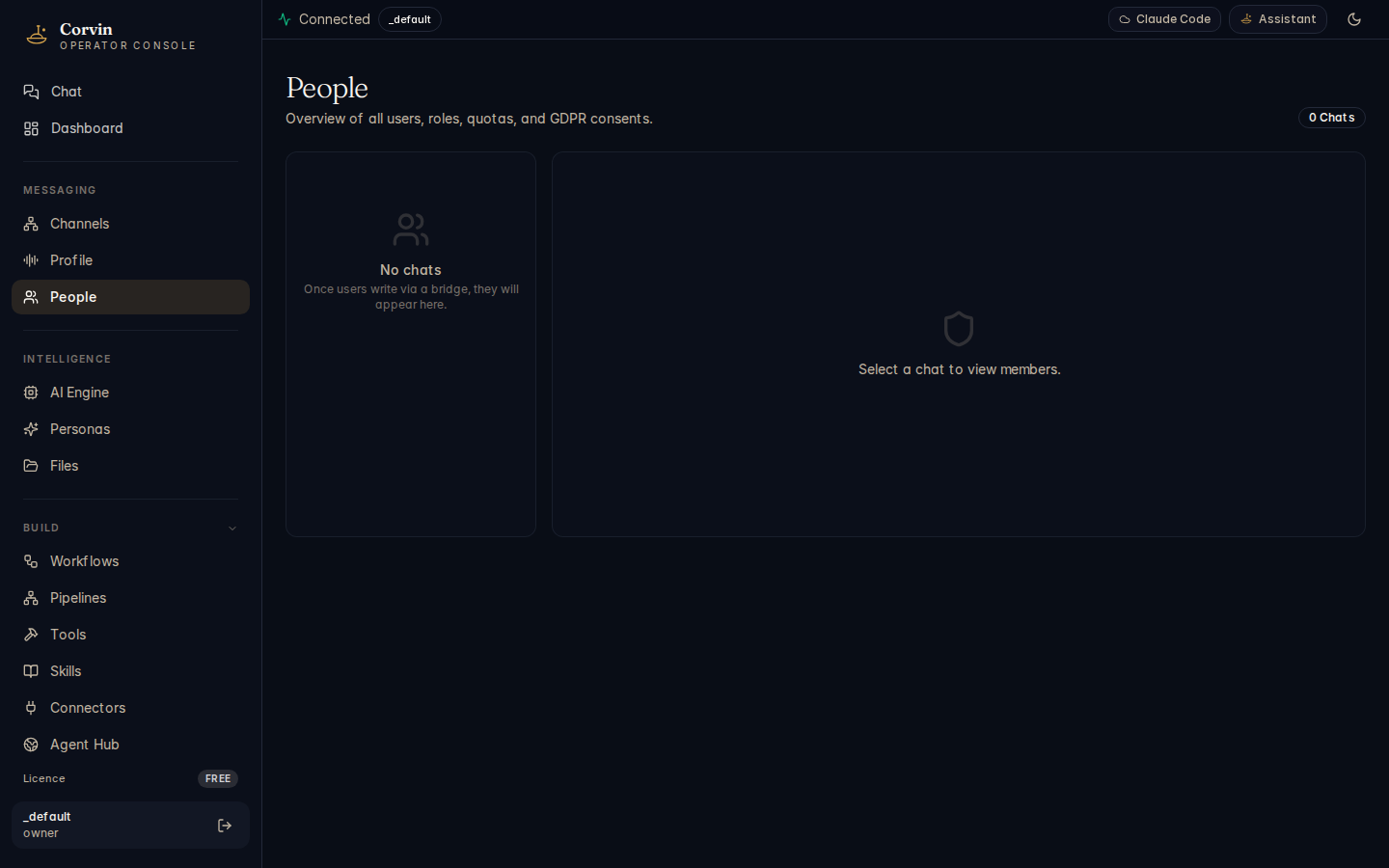
The People page shows every user that has interacted with CorvinOS across all connected messaging bridges. Each entry includes the user's display name, bridge identifier, role, and consent status.
Roles
CorvinOS uses a four-tier role hierarchy. Roles descend in permissions:
- Owner — unlimited quota, full administrative access, can grant and revoke any role. There is one owner per installation.
- Admin — up to 500 messages per day, can manage members and observers. Cannot self-promote to owner (the "kerze rule").
- Member — up to 100 messages per day, standard access to AI capabilities.
- Observer — read-only presence; can receive messages but is not processed by the AI without explicit grant.
/joinself-registers a user as an observer.
Role assignments are stored per channel and chat (<global>/roles/<chan>__<chat>.json) with a default TTL of 7 days. Commands: /grant, /revoke, /role, /roles, /leave.
Quota
Daily message quotas are enforced per user per bundle role. The check and the record are split operations: if an AI run fails, the quota is not consumed. The owner role has unlimited quota. Quota resets at midnight (server time). Use /quota to check remaining budget, or /audit to see recent activity.
Every user must explicitly grant consent before CorvinOS processes their messages. Consent is deny-by-default in compliance with GDPR Art. 6 and 7. New users receive an AI-disclosure card (required by EU AI Act Art. 50) and must respond with /consent on before the AI will reply to them. Consent can be time-limited (/consent on 24h) and revoked at any time with /consent off.
AI disclosure
The first time a new user is seen on any channel or chat, CorvinOS automatically sends a one-time disclosure card explaining that they are interacting with an AI system. This card is structural — it cannot be disabled via configuration. The card is capped at 1 500 characters and is available in German and English. After the card is sent, the user's disclosure state is recorded and the card is not shown again for that user on that channel.