Build
Create workflows and pipelines, manage AI-generated tools and skills, configure MCP connectors, and connect with peer agents via the Agent Hub.
Workflows
Create and manage multi-step AI workflows. Each workflow is a named definition with a sequence of nodes — AI tasks, conditions, and human approval gates — that together describe an automated process.
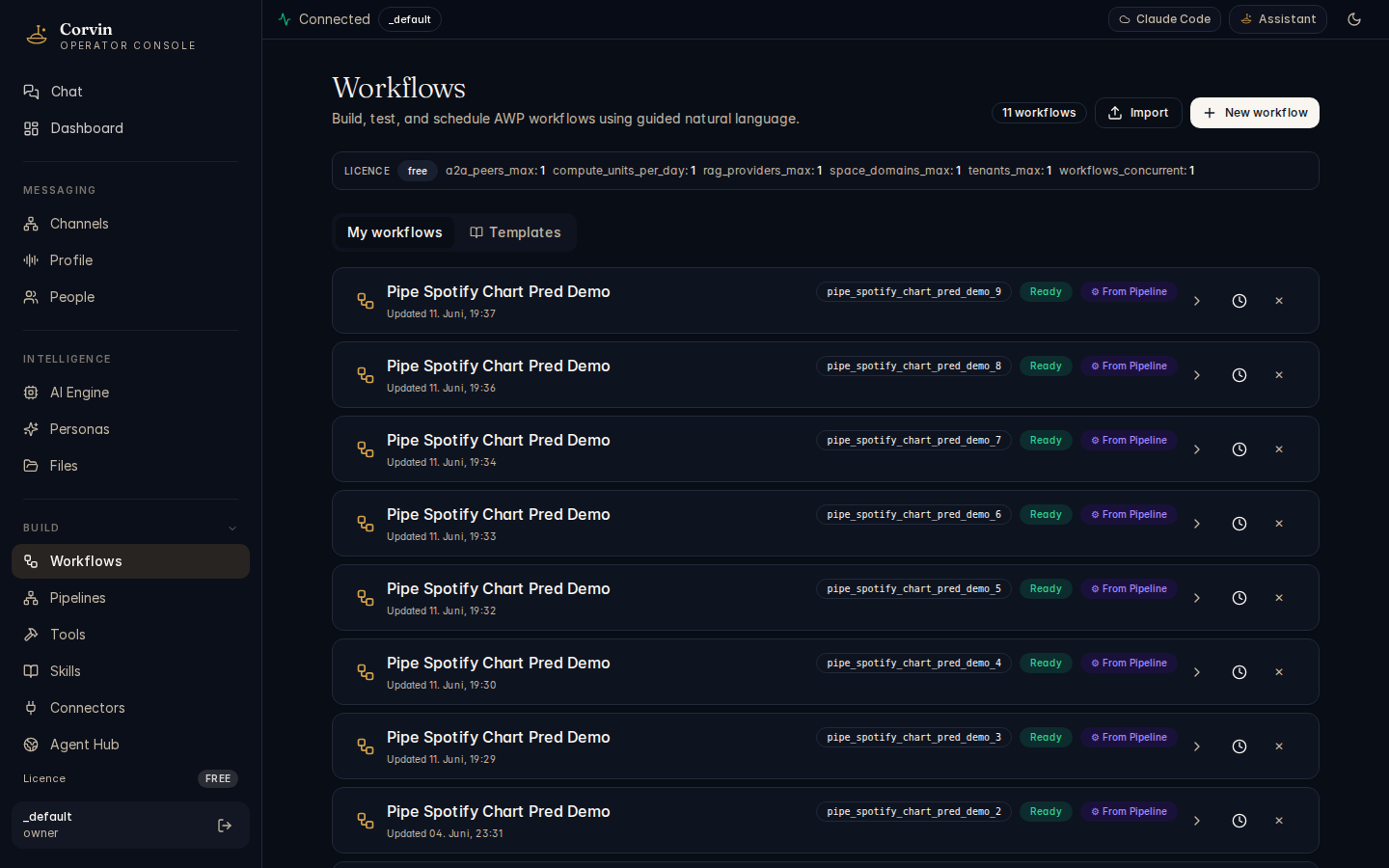
Workflows can be triggered manually from the console or automatically via external automation. Execution history is tracked per workflow so you can audit every run.
Manual Trigger
Run a workflow on demand from the console. Useful for one-off or ad-hoc automations during development or testing.
Automated Trigger
Connect workflows to external events — incoming messages, API webhooks, or scheduled cron expressions — for fully hands-off execution.
Run History
Every execution is recorded with status, duration, and per-node output. Navigate to a workflow to view its complete run history.
Run Detail
Drill into any individual run to inspect the output of each node, see which conditions were evaluated, and review approval gate decisions.
Navigate to a workflow definition to edit its node sequence, view all past runs, and inspect the detailed output of each individual execution.
Pipelines
The Pipelines page (CorvinFlow) is the execution console for live and historical flow runs. It provides a real-time view of every pipeline execution — its status, timing, and the individual steps that make it up.
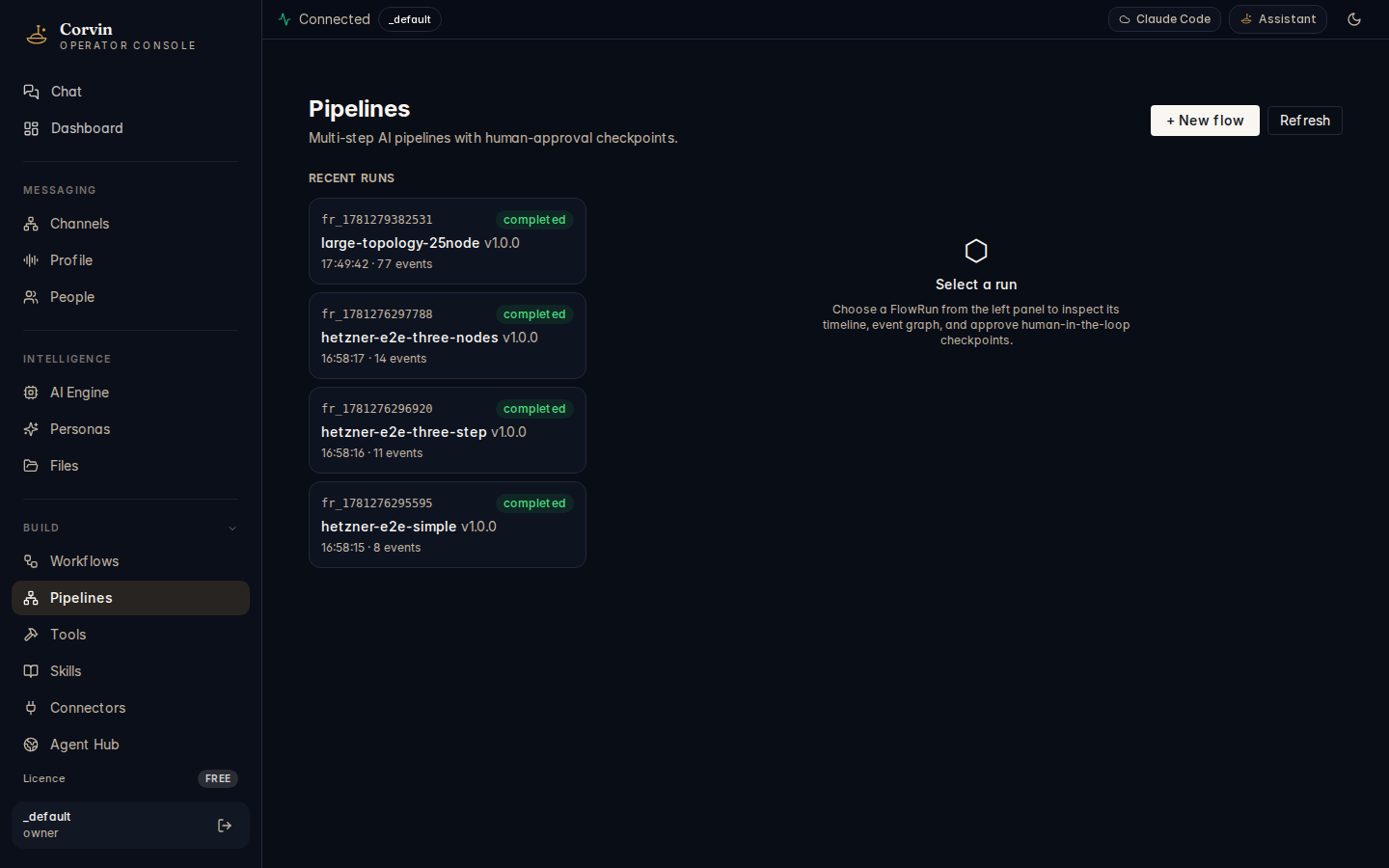
Timeline view
The timeline shows all pipeline runs with their current status: running, completed, failed, or awaiting approval. Each entry links to the full DAG graph and step-level event list for that run.
DAG graph view
The FlowGraphView component renders the workflow's directed acyclic graph (DAG) structure visually. Each node in the graph is colour-coded by its execution state, and edges show the flow of data and control between steps. This makes it easy to see where a run is currently executing and which paths were taken through conditional branches.
Human-in-the-loop approvals
Workflows can include checkpoint nodes that pause execution and wait for a human decision. From the Pipelines page you can approve or reject any pending checkpoint directly — no separate tool needed. The run resumes immediately once a decision is recorded, and the outcome is written to the audit log.
Approval decisions are recorded in the L16 hash-chained audit log alongside the approving user's session fingerprint. This provides a tamper-evident record for compliance purposes.
Tools (Forge)
The Tools page shows the AI-generated tools created by the Forge system. Each tool is a schema-bound, sandboxed Python or Bash function exposed to the AI as an MCP tool. Tools are scoped to a workspace — task, session, project, or user — and can be promoted up the scope hierarchy as they prove useful.
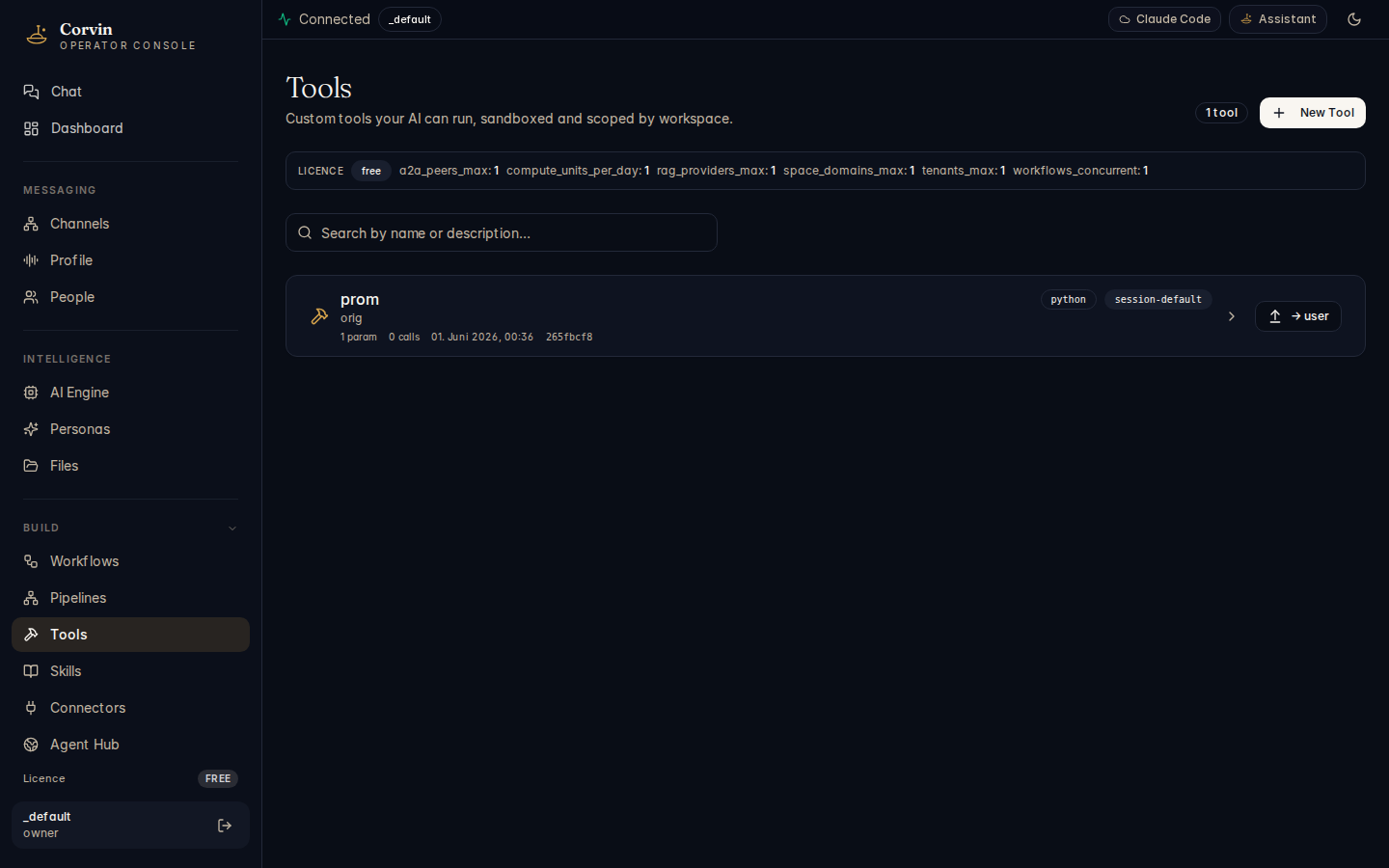
Tool cards
Each tool card shows the key metadata for a forge tool. For example, the prom tool (visible in the screenshot above) is a Python tool in session-default scope with 1 parameter and 0 calls so far, created on 01 June 2026, with a content hash of 265fbcf8. The licence bar at the bottom of the page shows the current tier limits — on the free tier these include: a2a_peers_max: 1, compute_units_per_day: 1, rag_providers_max: 1, space_domains_max: 1, tenants_max: 1, workflows_concurrent: 1.
Scope promotion
Tools can be promoted up the scope ladder — from session to project to user — using the promote button (↑ → user) on each tool card. This makes a useful tool available across more contexts without recreating it manually.
Manual tool creation
The New Tool button opens a manual tool creation form (introduced in ADR-0124 M5b). Use this to define a tool with a custom schema, implementation, and scope without waiting for the AI to generate it automatically.
Sandbox guarantees
All forge tools run in a hermetic sandbox:
- No network access by default — only research/browser personas can grant network access via the tool's
meta.networkfield. - Hermetic tmpdir — each tool invocation gets an isolated temporary directory; writes outside it are blocked.
- Read-only
/usr— system paths cannot be modified by a tool at runtime. - Secrets by reference — tools declare
meta.secretsas a list of environment-variable names; values are injected at runtime from the vault and never appear in the tool definition.
The path-gate hook (Layer 10) blocks all writes to forge workspaces, audit.jsonl, policy.json, and license trees — regardless of which engine or persona is running the tool. This protection is structural and cannot be bypassed via tool arguments.
Skills
Skills are Markdown prompt fragments that are injected into future AI turns, persistently shaping the AI's behavior across a session, project, or your entire user scope. Unlike one-off instructions, skills are modular, versioned, and automatically graded.
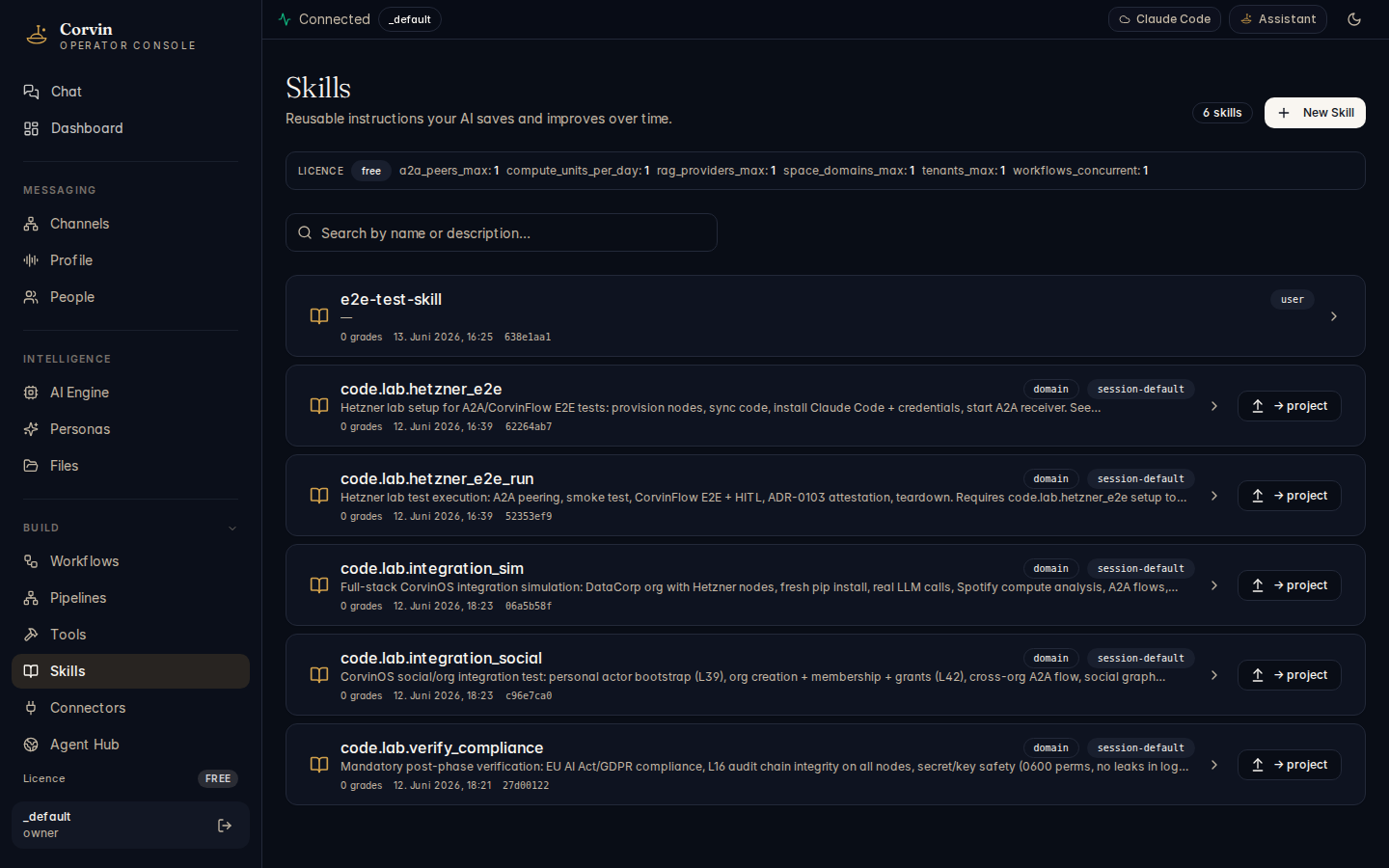
Skill registry
The Skills page shows all skills registered across scopes (task, session, project, user), their current grade score, and their promotion history. Skills at higher scopes are injected more broadly — a user-scope skill appears in every conversation, while a task-scope skill is available only for the current task.
Auto-grading
After each AI turn, the system automatically grades active skills based on how the AI responded:
- Mention or paraphrase of the skill content → grade
0.7 - User approval of an AI action that applied the skill → grade
0.9 - User rejection of an AI action → grade
0.1
Promotion gates
Skills must earn their way to higher scopes through a grading threshold:
- Task → Session: at least 1 positive grade
- Session → Project: at least 3 grades with a mean score ≥ 0.5
- Project → User: requires operator
force=True— this scope is deliberately protected
Manual skill creation
Use the New Skill button (ADR-0124 M5a) to write and register a skill directly from the console. The skill text is passed through the SkillForge linter before registration — it must not contain prompt-injection patterns, embedded secrets, persona-boundary violations, or exceed the size limit.
Skills differ from system prompts. A system prompt is monolithic and applies to every turn. Skills are modular prompt fragments that are composed at runtime, graded continuously, and automatically promoted or demoted based on evidence of usefulness. A well-graded skill eventually reaches user scope and becomes part of every future conversation without any manual configuration.
Connectors
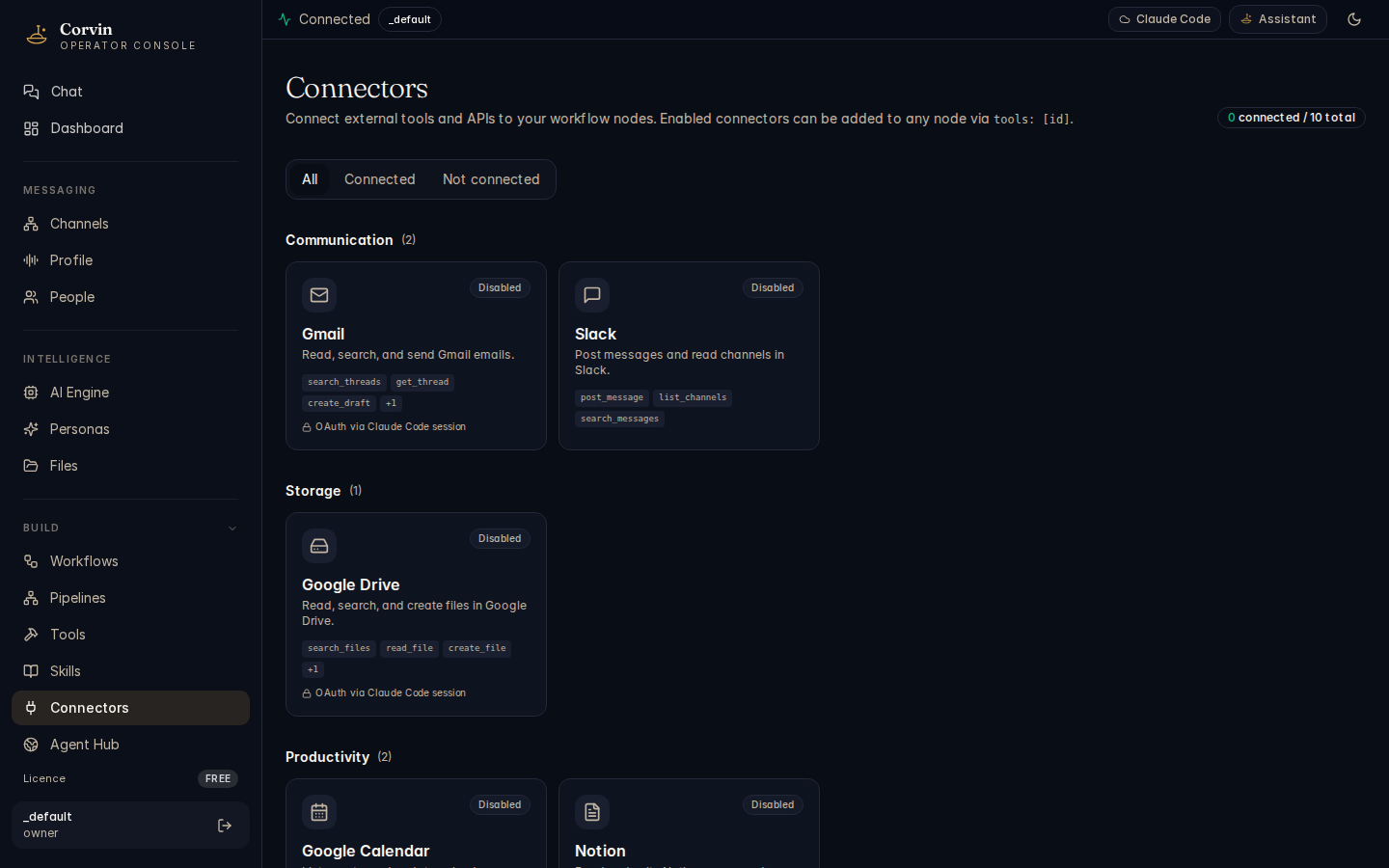
Connectors are MCP (Model Context Protocol) tool servers that the AI can call during a conversation or task. Each connector exposes a set of typed tools — the AI discovers them automatically and invokes them as needed.
Built-in connectors
Built-in connectors are registered automatically by personas. When a persona declares an MCP server in its mcp_servers field, the connector is available for every conversation that uses that persona. Examples include the forge and skill-forge MCP servers that ship with CorvinOS.
Custom connectors
You can register custom connectors with any transport type:
- stdio — the connector is launched as a subprocess; CorvinOS manages its lifecycle.
- sse — the connector runs as an external server and is connected via Server-Sent Events.
- http — the connector is reached via a standard HTTP endpoint.
A seeded example connector is available after setup: ImageGen DALL-E 3, transport stdio, command npx -y @corvinlabs/imagegen-mcp@latest. This connector provides AI-powered image generation via OpenAI DALL-E 3 and is downloaded automatically on first use.
Connectors with stdio transport start as a subprocess managed by CorvinOS — no server setup required. Connectors with sse or http transport must already be running at the configured URL before they can be used.
Agent Hub
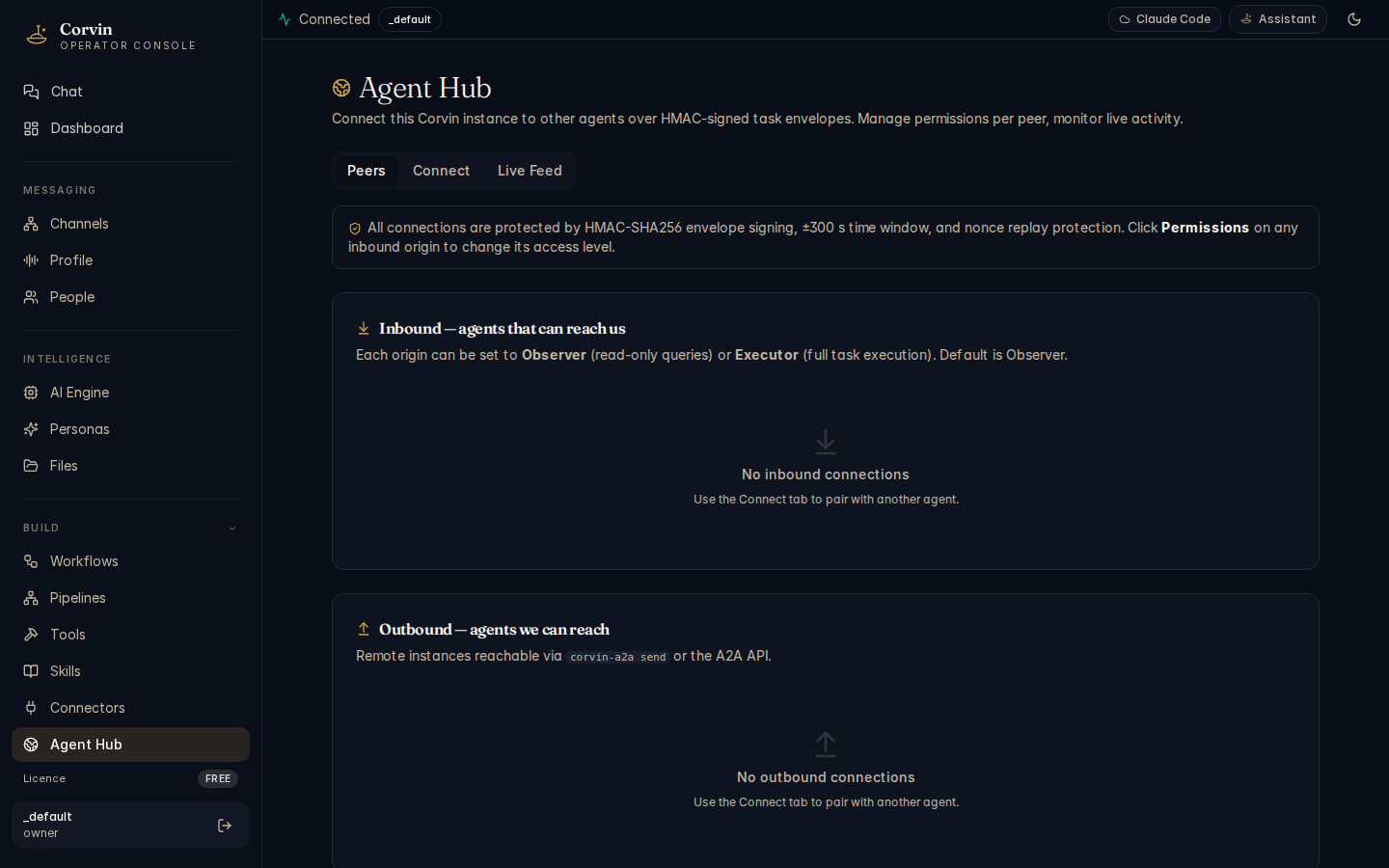
The Agent Hub is the management interface for A2A (Agent-to-Agent) connections — both outbound endpoints you can send tasks to and inbound origins (peer agents authorised to send tasks to you).
Instance identity
Every CorvinOS installation has a persistent instance ID — a UUID4 stored at ~/.corvin/global/instance_id.json. Peers use this ID to pin your endpoint: a response signed by the wrong instance fails the pin check even if the URL is the same. You can view your instance ID in the Agent Hub or via the CLI with corvin-instance-id show.
Outbound endpoints
Outbound endpoints are peer agents you can delegate tasks to. Each endpoint stores a paired HMAC key and the peer's expected instance ID. Tasks are sent via corvin-a2a send <endpoint-id> "<instruction>" and responses are HMAC-verified before being surfaced to the requesting AI.
Inbound origins
Inbound origins are peers authorised to send tasks to your instance. Each origin has its own paired HMAC key and, when spawn_worker: true is set, can trigger a local worker spawn. Every inbound envelope is validated against the origin's key before any action is taken — unknown origins are rejected unsigned to avoid providing a timing oracle.
Pairing
To connect two CorvinOS instances, run corvin-a2a pair <peer> <peer-url> on either side. This generates a paired HMAC key, writes the local origin or endpoint file, and prints the counterpart file for out-of-band exchange with your peer.
Binary attachments (Protocol v3)
A2A Protocol v3 adds support for binary attachments in both task and response envelopes. Attachments are base64-encoded with SHA-256 verification — any in-flight modification fails the digest check. Limits: up to 16 attachments and 1 MiB total raw bytes per envelope. Attachment names must match [A-Za-z0-9_-][A-Za-z0-9._-]{0,127} (no path separators, no leading dots) to prevent path-traversal attacks.
Every inbound A2A envelope is written to the L16 hash-chained audit log before any response is sent or worker spawned. A chain-write failure blocks the request entirely — audit is structural, not best-effort, for A2A traffic.