Intelligence
Understand which AI engines are available, how personas shape the AI's behavior, and how to manage files within your tenant workspace.
AI Engine
The Engines page shows every AI engine detected on your installation. CorvinOS is engine-agnostic — it can run conversations and sub-tasks across five different engines, each with different capabilities, cost models, and data-locality guarantees.
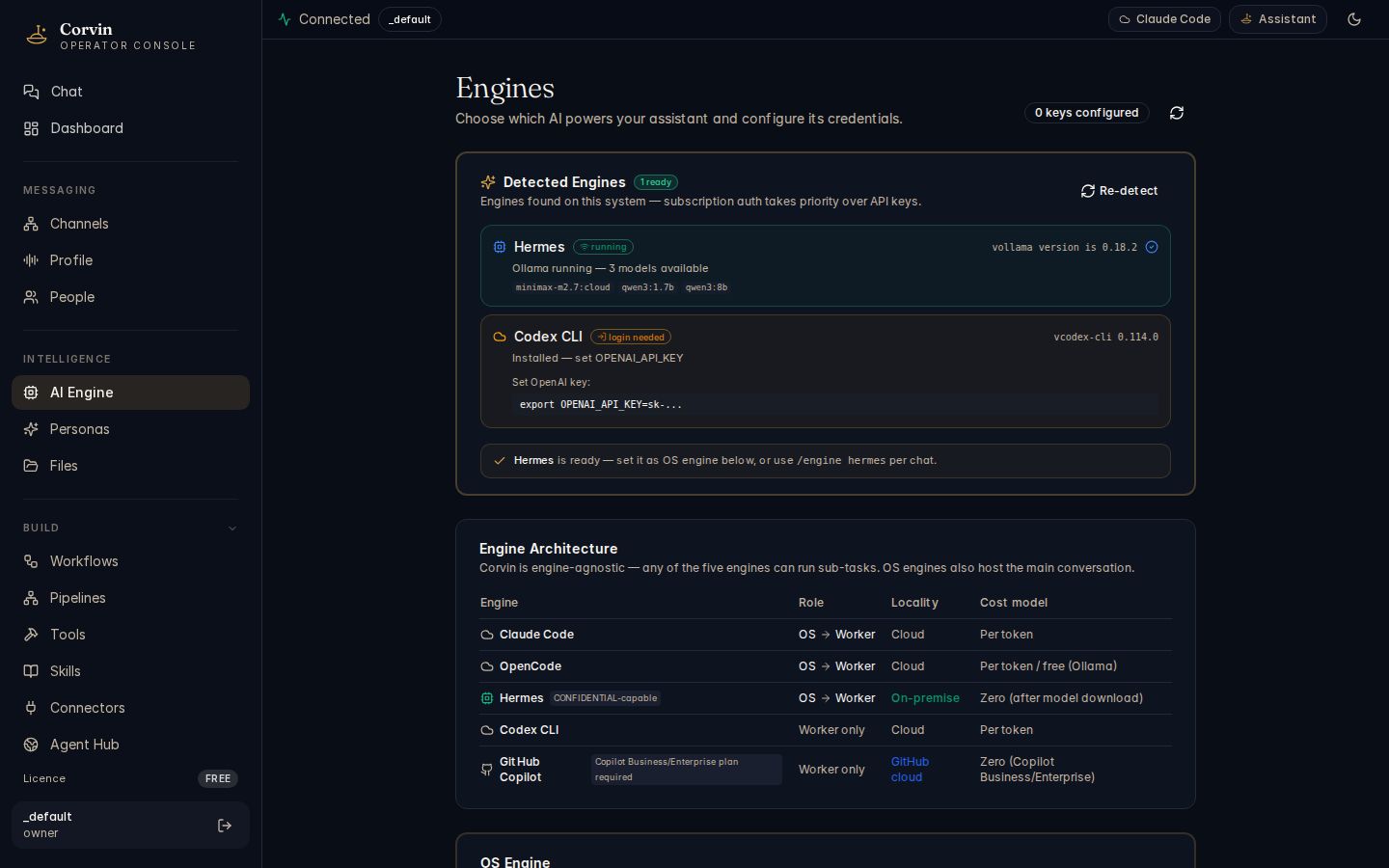
Detected engines
The Detected Engines section shows all engines found on the current host. A badge in the top-right corner indicates the total number of ready engines (e.g. 4 ready). Each card shows real-time status, version, and authentication method:
Hermes
Local Ollama runtime. Shows running status (green), Ollama version, and available models (e.g. minimax-m2.7:cloud, qwen3:1.7b, qwen3:8b). Locality: On-premise.
GitHub Copilot
Authenticated via GitHub CLI (gh auth). Shows Copilot CLI version (e.g. v1.0.59). Requires an active Copilot Business or Enterprise subscription.
Claude Code
Authenticated via Claude subscription (OAuth). Shows CLI version (e.g. v2.1.173). The primary OS engine — hosts the main conversation and can delegate sub-tasks to worker engines.
Codex CLI
Authenticated via API key from OPENAI_API_KEY. Shows Codex CLI version (e.g. v0.114.0). Worker-only engine; used for code-generation and shell tasks.
Engine architecture
CorvinOS distinguishes between OS engines (which can host the main conversation turn and delegate sub-tasks) and worker engines (which receive delegated tasks from an OS engine). The five engines and their roles:
| Engine | Role | Locality | Cost model |
|---|---|---|---|
| Claude Code | OS → Worker | Cloud | Per token |
| OpenCode | OS → Worker | Cloud / On-premise | Per token / free (Ollama) |
| Hermes | OS → Worker | On-premise (CONFIDENTIAL-capable) | Zero (after model download) |
| Codex CLI | Worker only | Cloud | Per token |
| GitHub Copilot | Worker only | GitHub | Zero (Copilot Business/Enterprise) |
Switching engines
The active engine for a conversation can be set per-chat from the engine selector in the Chat input bar. For a tenant-level default, use System → Engine Control or the REST API at PUT /v1/console/settings/engine. Individual personas can also pin a specific engine — see the Personas section below.
Hermes (local Ollama) is CONFIDENTIAL-capable. It runs entirely on-premise with zero network egress, making it the only engine suitable for data classified CONFIDENTIAL under the Layer 34 data-classification policy. Use /engine hermes in any chat to pin Hermes for that session, or delegate to it from an orchestrator persona with delegate_hermes.
Personas
Personas define how the AI behaves in a specific context — which tools it can access, which engine it runs on, what its system prompt says, and what permissions it operates under. Every chat is driven by exactly one persona.
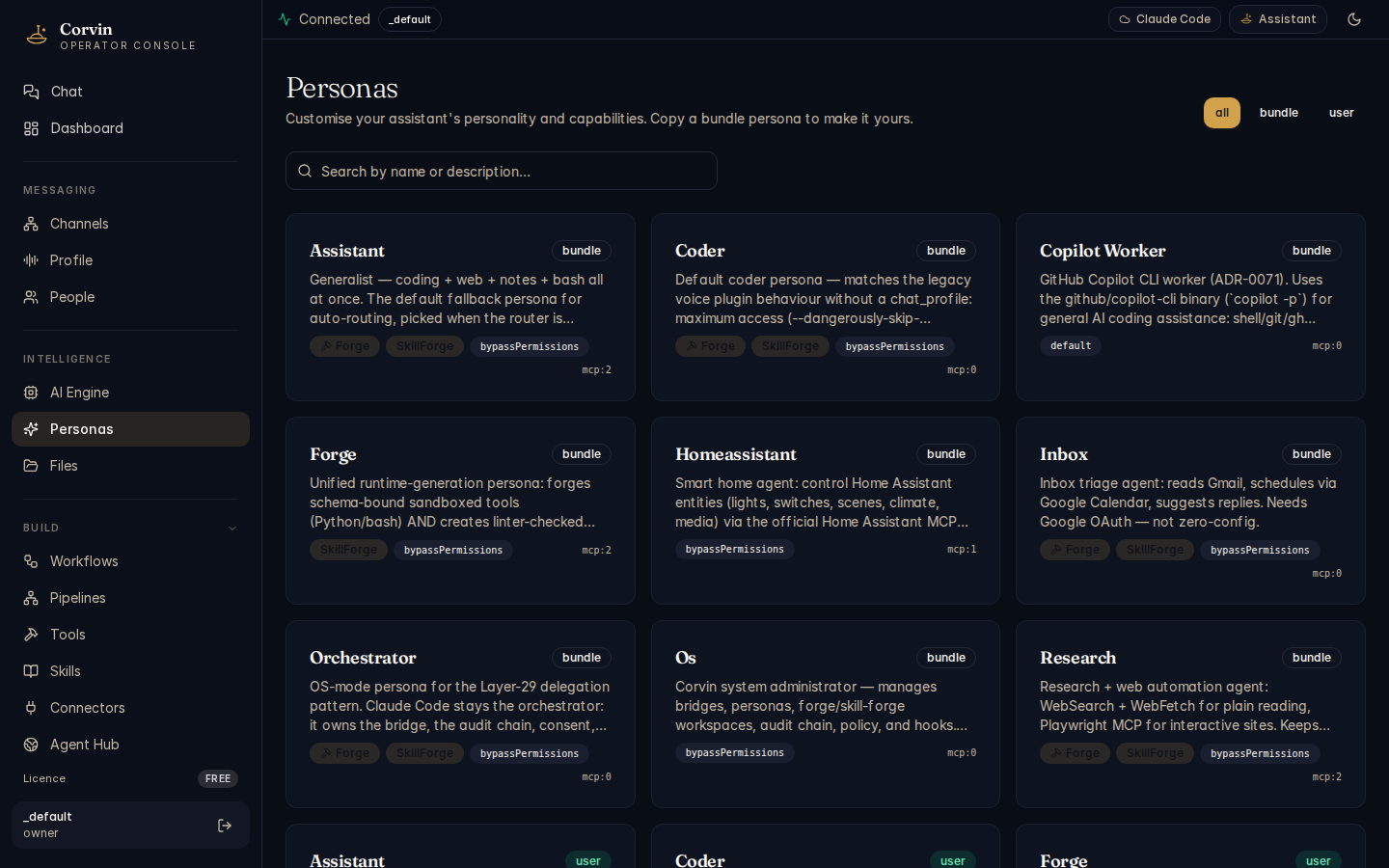
Bundle personas
Bundle personas ship with CorvinOS and are maintained by the operator. They cover the most common use cases out of the box:
- Assistant — generalist persona; the default fallback when no other persona is matched by the auto-router.
- Coder — optimized for software engineering tasks; mirrors the legacy voice plugin behavior.
- Copilot Worker — wraps GitHub Copilot CLI as a worker engine for shell, git, and
ghtasks. - Forge — runtime tool and skill generation; can create and register new MCP tools on the fly.
- Homeassistant — smart-home automation via the Home Assistant MCP server.
- Inbox — Gmail triage; reads, labels, and drafts email via MCP.
- Orchestrator — OS-mode Layer-29 delegation; spawns and manages worker engines for complex multi-step tasks.
- Os — system administrator persona; broad filesystem and shell access.
- Research — web search and Playwright-driven browsing for research tasks.
Persona cards
Each persona card shows:
- Name and description
- Capability badges — e.g. Forge (can create tools), SkillForge (can create skills), bypassPermissions (sandbox boundary enforced by Layer 10 path-gate rather than permission prompts), MCP server count
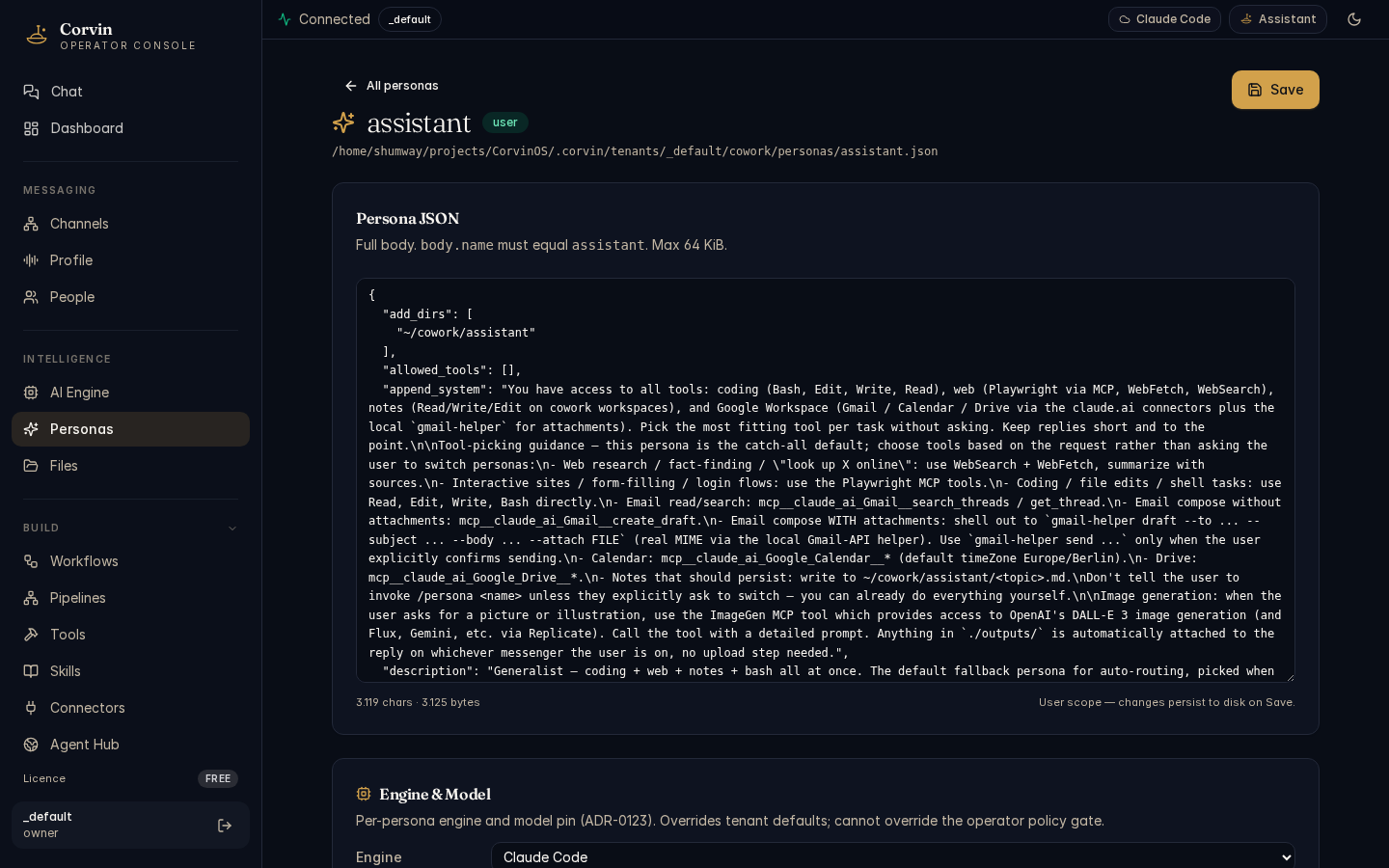
Persona detail
Clicking a persona card opens the detail view, which shows all configurable fields:
- Engine pinning — lock the persona to a specific engine (e.g. always use Hermes). Defined per ADR-0123.
- Model selection — override the default model for this persona (e.g. use a specific Ollama model for Hermes).
- Permission mode — controls whether the AI can execute tools without confirmation. Bundle personas with
bypassPermissionsrely on the Layer 10 path-gate as the sandbox boundary. - MCP servers — which MCP tool servers are available to this persona (e.g.
imagegen,forge,skill-forge). - System prompt additions — persona-specific instructions appended to the base system prompt.
- LDD preset — Loss-Driven Development layer configuration for this persona.
User personas
You can create user-scoped copies of any bundle persona. User personas are stored separately and can be edited freely without modifying the system default. They appear in the same card grid, distinguished by a "User" label.
Copy a bundle persona to create your own variant rather than editing the bundle directly. Bundle personas may be updated when CorvinOS is upgraded; user copies are never overwritten.
Auto-routing
When no persona is pinned for a chat, CorvinOS uses the auto-router to select the best persona based on the message content. The default routing mode is heuristic — keyword pattern matching with zero latency, no API call. Low-confidence routing falls back to the assistant persona. You can override auto-routing by pinning a persona to a chat profile in the bridge settings.json.
Files
The Files page provides a browser-based interface to the tenant's file storage. Files stored here are accessible to AI engines during tasks — they can be referenced, read, and written as part of any workflow.
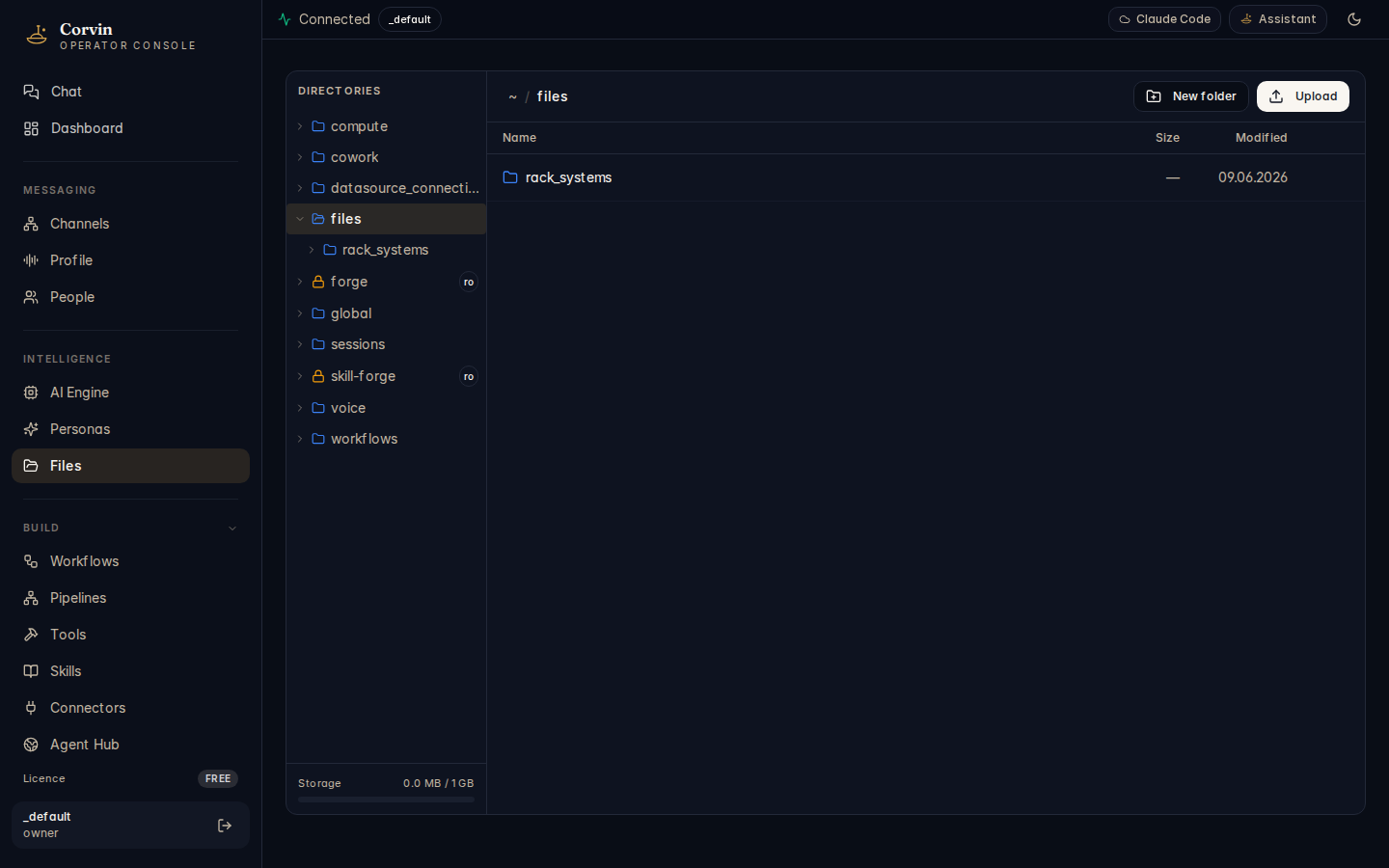
File operations
The file browser supports the following operations:
Upload
Drag and drop files onto the browser or use the upload button. Files are stored under the tenant's workspace directory.
Download
Click any file to download it to your local machine. The download is served directly from the tenant's on-disk storage.
Directories
Create subdirectories to organize files by project, task, or type. The AI can navigate the directory tree during tasks.
Delete
Remove individual files or entire directories. Deletions are permanent — there is no recycle bin. Session artifacts pinned to global/artifacts/ are preserved across session resets.
Storage location
Files are stored under the tenant's workspace at ~/.corvin/tenants/<tenant_id>/. Session artifacts (PDFs, images, CSVs, exports generated during a task) have a dedicated storage path at sessions/<bridge>:<chat>/artifacts/ and are managed by the Layer 33 artifact memory system — they are registered in an append-only manifest with SHA-256 integrity hashes and can be searched and retrieved by the AI in future sessions.
AI access to files
The AI can read and write files in the tenant workspace during tasks, subject to the Layer 10 path-gate. The path-gate blocks writes to protected directories (audit logs, policy files, forge workspaces, license trees) regardless of which engine is running. Files you upload here are immediately available to be referenced in any conversation or task.
Session artifacts generated by the AI (e.g. exported charts, generated PDFs) are automatically registered in the artifact memory system. They persist beyond the session and can be retrieved in future conversations using artifact_search or artifact_list. Pinned artifacts survive /new, /clear, and /reset.