Getting Started
Access the console for the first time and learn what every element of the dashboard tells you about your system.
Login
The CorvinOS console is a web application served by the bridge daemon. By default it listens on port 8765 and is accessible only from the local machine.
Localhost auto-login
When the environment variable CORVIN_LOCAL_AUTOLOGIN=1 is set (the default for single-user installs), visiting the special endpoint from the local machine issues a session cookie and redirects you straight to the console — no password required:
- Start the bridge daemon:
bridge.sh start(orbridge.sh consoleto open the console in your browser automatically). - Navigate to
http://localhost:8765/v1/console/auth/local-loginin your browser. - The server validates that the request originates from the loopback interface, issues a signed session cookie, and redirects to
/console/. - You are now logged in. The session persists until you close the browser or the daemon restarts.
Always use bridge.sh console rather than launching the daemon manually. The script ensures worker processes are tracked correctly, preventing frozen workers after hot-reload events.
Multi-user and remote access
For installations with multiple users or remote access, token-based authentication is available via the Settings → Tokens page. Each token is scoped to a tenant and role. Remote access requires placing the console behind a reverse proxy with TLS — the loopback auto-login endpoint refuses requests from non-loopback origins regardless of configuration.
Do not expose port 8765 directly to the internet. Always terminate TLS at a reverse proxy and configure appropriate authentication for remote users.
Dashboard
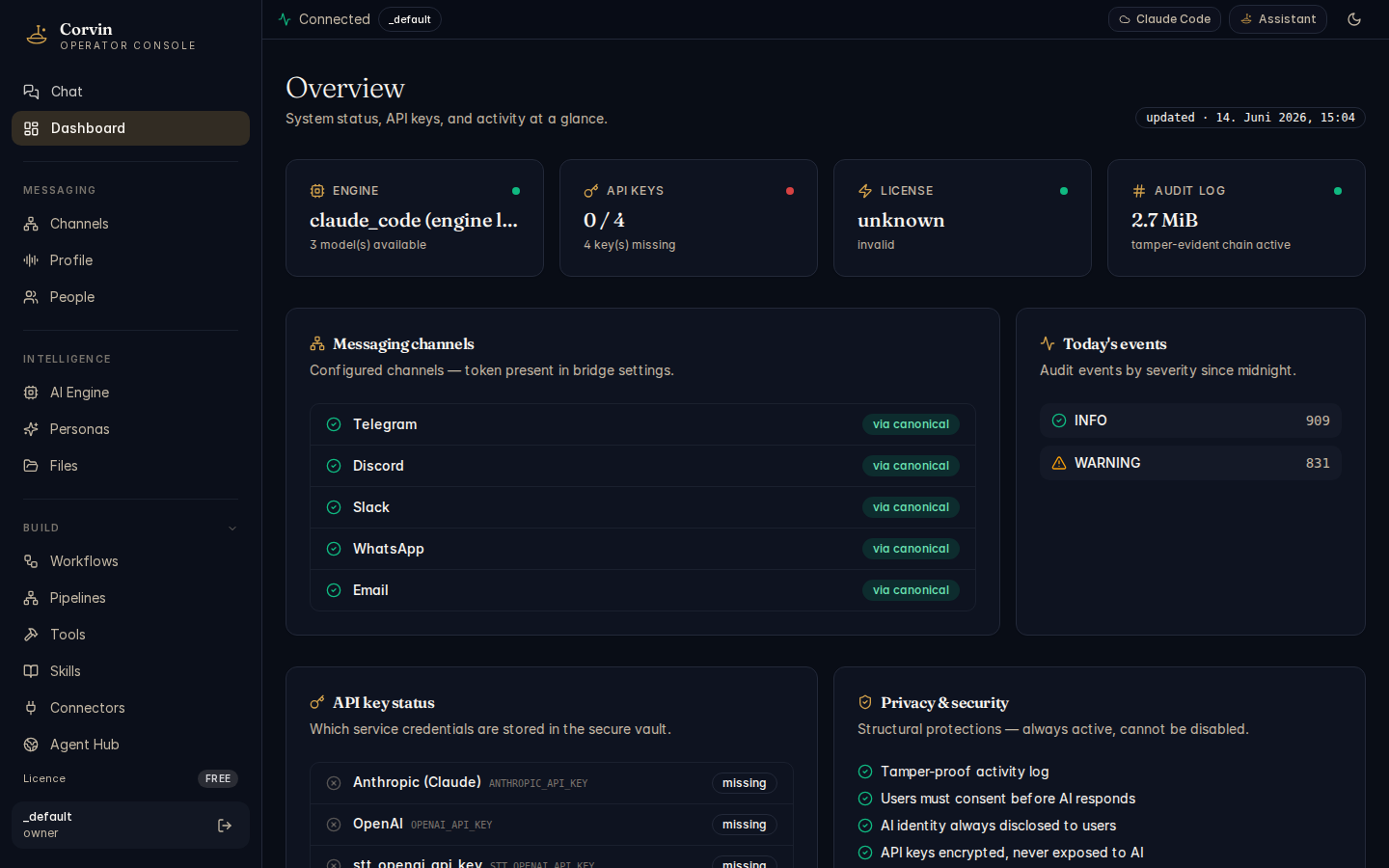
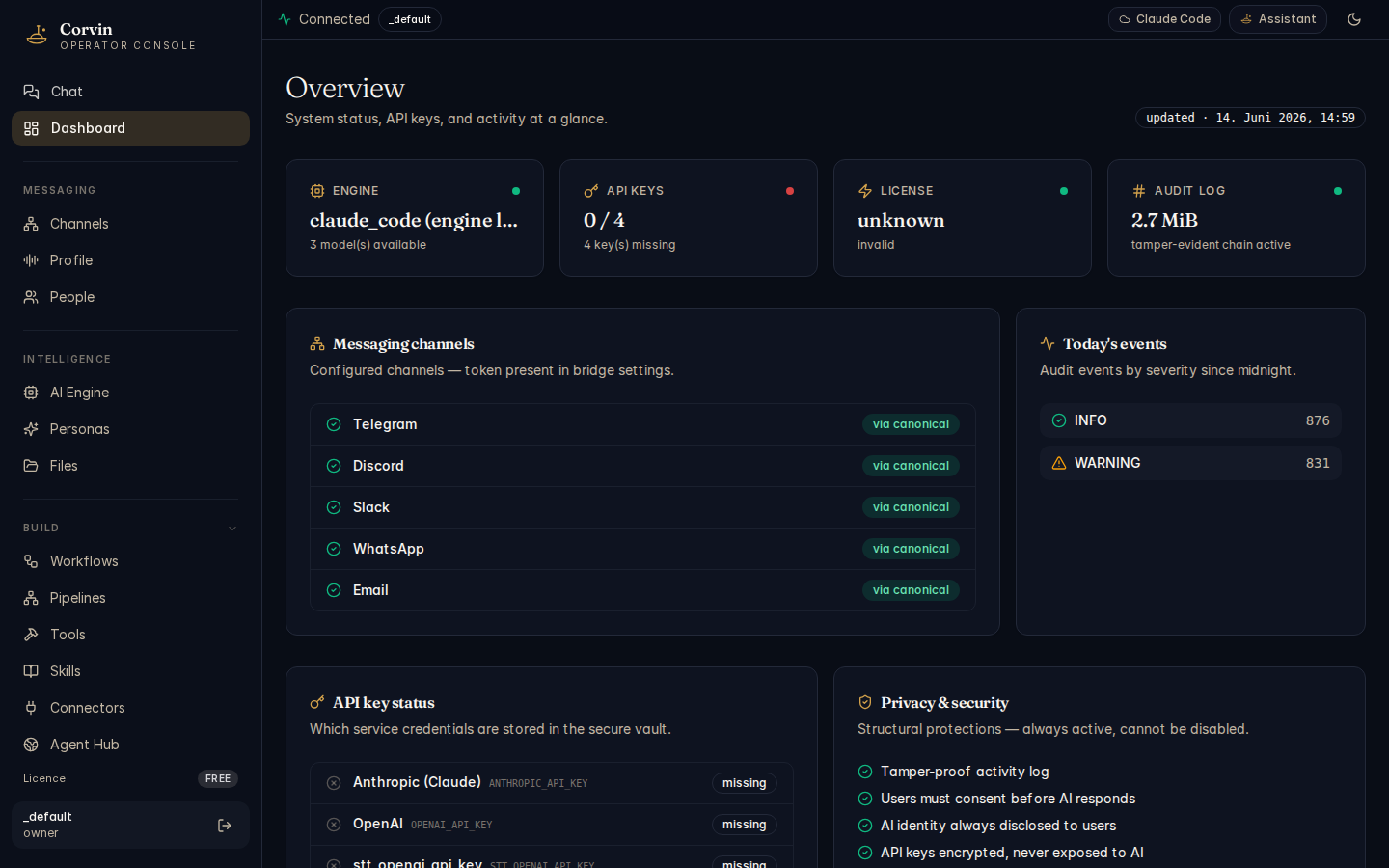
The dashboard is the first screen you see after login. It gives an at-a-glance view of your system: which AI engine is active, whether your API credentials are in order, the health of the audit chain, and the status of every messaging channel you have configured.
Status cards
Four summary cards run across the top of the dashboard. Each links to the relevant detail page.
ENGINE
Shows the currently active AI engine (e.g. claude_code) and the total number of models available across all detected engines. Click to open the Intelligence → AI Engine page.
API KEYS
Displays how many API credentials are configured out of the total expected. A mismatch here means one or more service integrations may be non-functional.
LICENSE
Shows the active license tier (e.g. Apache / Community). Enterprise features require a valid license JWT. Click to open the System → License page.
AUDIT LOG
Shows the current audit log size (e.g. 2.2 MiB) and confirms that the tamper-evident hash chain is active. Click to browse events on the Audit & Compliance page.
Messaging channels
Below the status cards, the Messaging channels section lists every bridge that has been configured with a token. Each entry shows the channel name, its connection method, and current status:
- Telegram — shown as via canonical, meaning the bridge routes messages through the canonical gateway endpoint.
- Discord — shown as via canonical.
- Slack — shown as via canonical.
- WhatsApp — shown as via canonical.
- Email — shown as via canonical.
Channels without a configured token are not shown. A green indicator means the bridge process is running and has successfully connected. If a channel shows an error state, check the token in System → API Keys and restart the relevant bridge with bridge.sh restart.
Settings changes under operator/bridges/<channel>/settings.json hot-reload immediately — you do not need to restart the bridge for whitelist, rate-limit, or chat-profile changes.
Today's events
A sidebar on the right of the dashboard shows a count of audit events emitted since midnight, broken down by severity level (INFO, WARNING, CRITICAL). This gives a quick sense of system activity without needing to open the full audit log. The count updates live; the "updated" timestamp shown reflects the last time the dashboard data was fetched from the server.
API key status
The API key status section lists which service credentials are present in the secret vault:
- Anthropic — required for Claude Code engine and Haiku helper sub-processes.
- OpenAI — required for Codex CLI engine, Whisper speech-to-text, and ImageGen MCP.
- STT keys — additional keys for the speech-to-text chain if a secondary provider is configured.
Keys are stored in the secret vault at ~/.config/corvin-voice/secrets.json (mode 0600). They are injected into sandboxed sub-processes at spawn time via environment variables; their values are never written to the audit log or the LLM context.
Privacy & security
The Privacy & security section near the bottom of the dashboard lists the structural compliance guarantees that are always active. These cannot be disabled via any configuration flag or environment variable — they are architectural invariants enforced at the code level:
- Tamper-proof audit log — every event is linked into a hash chain; any modification to a past entry invalidates all subsequent entries. The daily audit-verify timer checks the chain integrity automatically.
- Consent gate — per-user consent is required before the system processes any message. Consent is deny-by-default and must be granted explicitly with
/consent on. - AI disclosure — the system sends a one-time disclosure card to every new user explaining that they are interacting with an AI, as required by EU AI Act Art. 50.
- Encrypted secrets — API keys and tokens are stored in the encrypted vault and are never exposed to the AI engine context or logged.
CorvinOS is built to the EU AI Act 2026 and GDPR as structural design constraints, not bolt-on compliance. The guarantees shown here cannot be weakened without modifying the source code.